Known as the “Swiss Army knife” of networking tools, Netcat is a compact yet highly versatile command-line utility that every network administrator and cybersecurity professional should have in their toolkit. Its efficiency and range of capabilities make it essential for managing complex networks, from checking connectivity to transferring files and diagnosing services.
Originally developed as a tool for network debugging and analysis, Netcat works with both Transmission Control Protocol (TCP) and User Datagram Protocol (UDP). Its ability to connect to virtually any port, along with support for both client and server modes, allows it to tackle a wide variety of networking tasks. Common uses include port scanning, banner grabbing, and even creating simple chat servers.
Beyond traditional networking tasks, Netcat is valued in penetration testing and ethical hacking. Security professionals use it to uncover vulnerabilities, establish reverse shells, and emulate client-server interactions. However, its power also means it must be used responsibly and ethically to avoid misuse.
This cheat sheet serves as a practical guide to mastering Netcat’s broad functionality. Whether troubleshooting network issues, transferring data, or testing security measures, understanding how to leverage its features can significantly boost productivity and effectiveness. With clear examples and actionable tips, this guide helps users maximize Netcat’s potential while simplifying network management and security tasks.
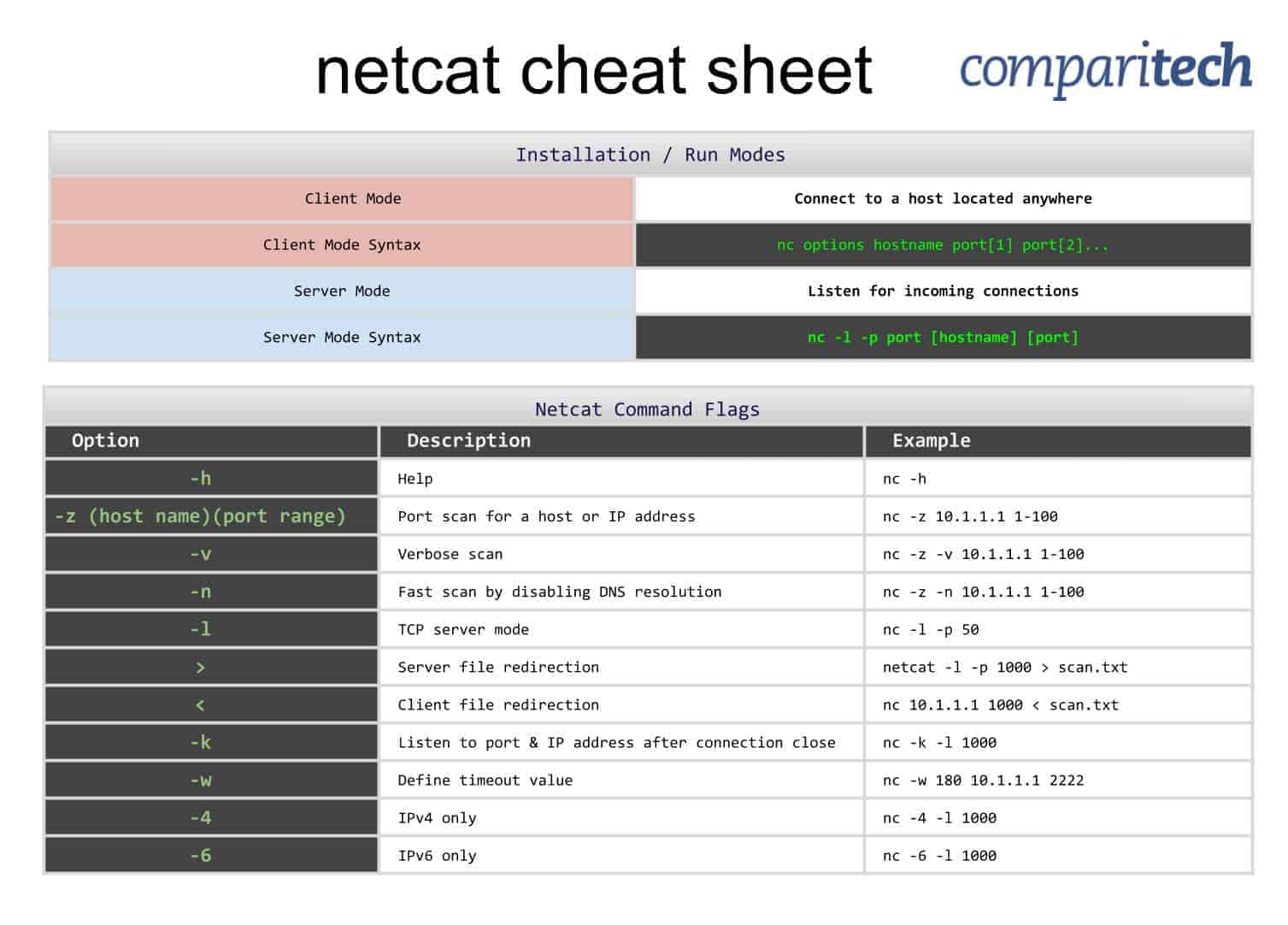
All the tables provided in the cheat sheets are also presented in tables below which are easy to copy and paste.
The Netcat cheat sheet covers:
- Installation
- Run Modes
- Netcat Command Flags
View or Download the Cheat Sheet JPG image
Right-click on the image below to save the JPG file (1,507 width x 1,082 height in pixels), or click here and open it in a new browser tab. Once the image opens in a new window, you may need to click on the image to zoom in and view the full-sized jpeg.
View or Download the cheat sheet PDF file
You can also download the cheat sheet PDF file here. If it opens in a new browser tab, simply right click on the PDF and navigate to the download selection to save on your hard-drive or cloud storage.
What’s included in the cheat sheet
The following categories and items have been included in the cheat sheet:
Installation / Run Modes
Installation / Run Modes |
|
|---|---|
Client Mode | Connect to a host located anywhere |
Client Mode Syntax | nc options hostname port[1] port[2]... |
Server Mode | Listen for incoming connections |
Server Mode Syntax | nc -l -p port [hostname] [port] |
Netcat Command Flags
Netcat Command Flags |
||
|---|---|---|
Option | Description | Example |
-h | Help | nc -h |
-z (host name)(port range) | Port scan for a host or IP address | nc -z 10.1.1.1 1-100 |
-v | Verbose scan | nc -z -v 10.1.1.1 1-100 |
-n | Fast scan by disabling DNS resolution | nc -z -n 10.1.1.1 1-100 |
-l | TCP server mode | nc -l -p 50 |
> | Server file redirection | netcat -l -p 1000 > scan.txt |
< | Client file redirection | nc 10.1.1.1 1000 < scan.txt |
-k | Listen to port & IP address after connection close | nc -k -l 1000 |
-w | Define timeout value | nc -w 180 10.1.1.1 2222 |
-4 | IPv4 only | nc -4 -l 1000 |
-6 | IPv6 only | nc -6 -l 1000 |
Netcat FAQs
What is Netcat used for?
Netcat is a port scanner and monitor that can also be used to transfer files and execute transferred programs. It is of use to network administrators and it is also used by hackers.
Which option of the Netcat command allows it to scan multiple ports?
You can scan a range of ports with the Netcat command:
nc -zv hostname.com –
alternatively
nc -zv hostname.com
How do I use Netcat on Windows?
Netcat is available in Windows but it doesn’t have an app with a graphical user interface. Instead, you have to enter cmd in the Start menu search field and click on Command Prompt in the results list. Enter an nc command at the prompt to run the service.
How do I scan a port using Netcat?
Netcat is a command-line utility that is launched with the letters nc followed by switches and a port number or range.