When you are running a network for a company, delivery speed is vitally important. Not only do you need to make sure that you have good response times, but you need to ensure that the speed of the network is adequate on every single path that your users’ communications will take.
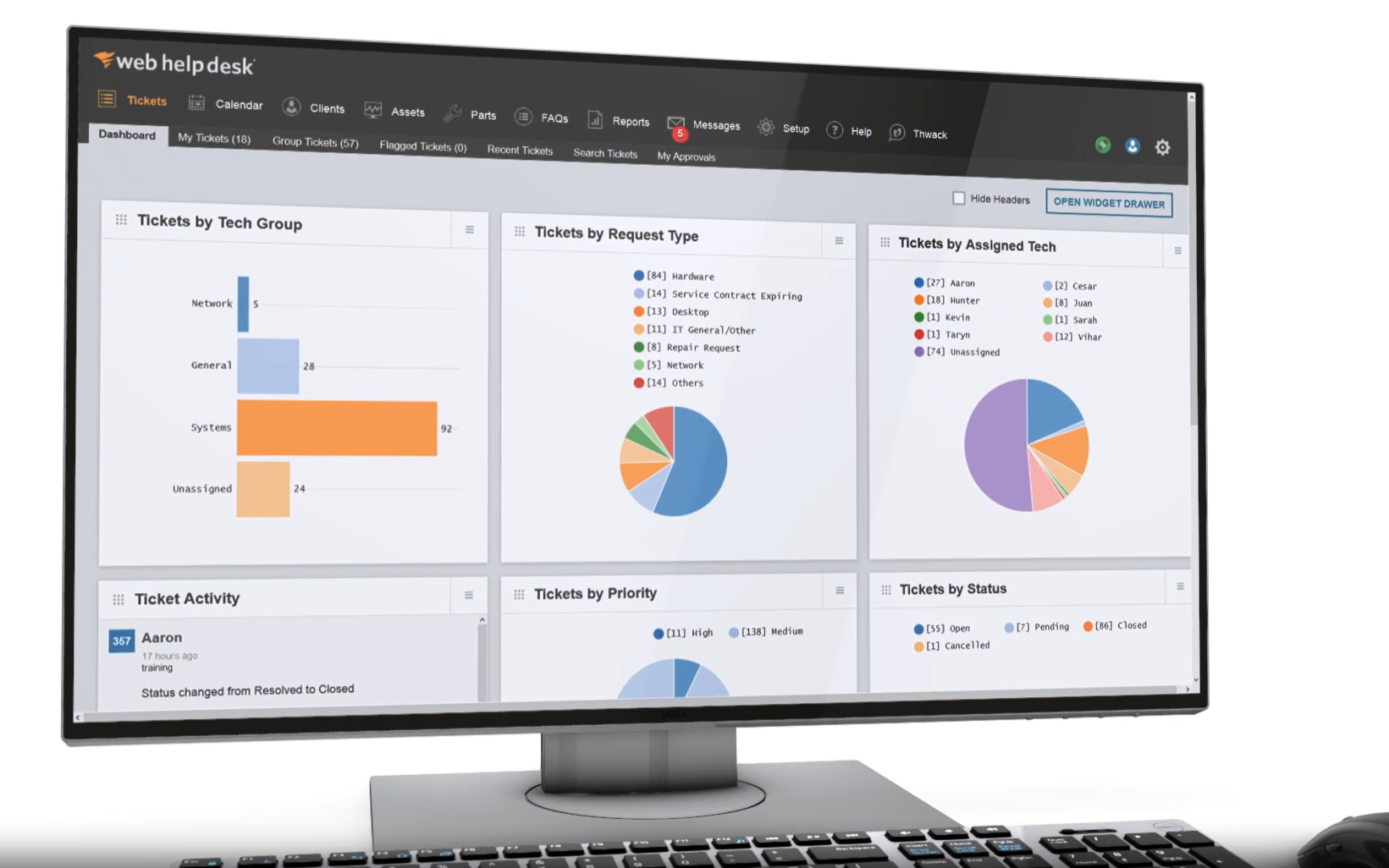
That is a lot of work, and testing every path manually will take up all of your time. You need to get a testing tool to ensure that latency does not impair your network’s performance. Additionally, network latency testing tools address the following pain points in your organization.
- Slow performance of systems, without knowing the cause.
- Poor quality and dropped calls, made through VoIP and video conferencing software.
- Recurring network disruptions or slowdowns.
- Delays in sending files and downloading data.
- Inconsistent response times that can impact access to SaaS platforms.
The above issues can be addressed by testing network latency and understanding the root cause of the problem. In this guide, we will analyze the popular network latency testing tools to help you decide the best fit for your needs.
Here is our list of the best network latency testing tools:
- Site24x7 Network Monitoring EDITOR’S CHOICE A monitoring system that includes a bandwidth analyzer to extract live traffic data from switches and routers and spot traffic bottlenecks. Access the 30-day free trial.
- ManageEngine OpManager (FREE TRIAL) This network monitoring system includes a latency testing tool that is particularly useful for monitoring VoIP traffic and WAN connections. Installs on Windows Server and Linux or you can get it on AWS. Access the 30-day free trial.
- Network Pinger A Ping sweep and Traceroute facility for Windows that shows graphs of your network performance.
- Paessler Network Latency Sensors with PRTG A network monitor that can report on round-trip time, packet arrival sequence, packet loss, and jitter.
- Obkio This network monitoring package provides device status tracking as well as traffic analysis to spot problems such as latency, jitter, and packet loss.
- SolarWinds Network Performance Monitor A comprehensive network monitoring system that runs on Windows Server.
- ManageEngine Free Ping Tool A free Ping utility for Windows and Linux.
- PingPlotter A recursive Ping utility with a graphical output.
- NirSoft NetworkLatencyView Free network latency testing tool for Windows that uses Ping to test network performance.
- Angry IP Scanner A free Ping sweep tool for Windows, Linux, and Mac Os.
- Pinkie Free tool for Windows that performs a Ping sweep.
- NetScan Tools This is a Ping-based network performance tool for Windows.
If you need to know more, explore our vendor highlight section just below, or skip to our detailed vendor reviews.
Βest network latency testing tools highlights
Top Feature
WAN and VoIP latency monitoring, Ping based tests across LAN and WAN, MOS scoring
Price
Depends on the number of devices
Target Market
IT teams of large enterprises
Free Trial Length
30-day free trial
Read more ▼


Top Feature
Recursive Ping across IP ranges, clear RTT display, integrated traceroute and remote tools
Price
Free
Target Market
Individuals who need a simple diagnosis of their connectivity
Free Trial Length
Free tool
Read more ▼

Top Feature
Latency and QoS monitoring with Ping Jitter, Cisco IP SLA, QoS round trip sensors
Price
Depends on aspects and devices, base $179 for up to 500 aspects and 50 devices
Target Market
IT teams that manage complex networks across multiple locations
Free Trial Length
30-day free trial
Read more ▼

Top Feature
Real time latency diagnostics, distributed agents across sites, visual traceroute
Price
Starter $249/month for 5 agents 5 devices, 2 users; Basic $499/month for 10 agents and devices, 2 users
Target Market
IT teams working in distributed environments
Free Trial Length
14-day free trial
Read more ▼
Top Feature
Enterprise grade latency diagnostics, Quality of Experience dashboard visibility, NetPath hop by hop views
Price
Negotiated pricing
Target Market
Large organizations
Free Trial Length
30-day free trial
Read more ▼


Top Feature
Ping and Traceroute in one free desktop tool, plus DNS and web response tests
Price
Free
Target Market
IT teams that need a lightweight diagnostic tool
Free Trial Length
Free tool
Read more ▼

Top Feature
Ping and Traceroute with graphical results, real time path views
Price
Standard $6.99/month, Professional $29/month, Remote Teams starts at $90/month
Target Market
Remote support teams and network administrators
Free Trial Length
14-day free trial of Professional edition
Read more ▼

Top Feature
Passive TCP latency monitoring, derives timings from live traffic without Ping
Price
Free
Target Market
Windows users who need a lightweight tool for monitoring latency
Free Trial Length
Free tool
Read more ▼

Top Feature
Fast multithreaded IP and port scans, runs on Windows, Linux, Mac OS
Price
Free
Target Market
IT admins who require quick network audits
Free Trial Length
Free tool
Read more ▼

Top Feature
Suite of network tools with Ping sweep, runs on Windows
Price
Free
Target Market
Windows-based environments
Free Trial Length
Free tool
Read more ▼

Top Feature
Three Ping-based tools plus Traceroute, graphical views and range scanning
Price
Basic Edition free ad supported, $699 one license, $1,349 two, $1,889 three, $2,989 five
Target Market
Network engineers and security analysts
Free Trial Length
Basic Edition is a freeware
Read more ▼
Key points to consider before purchasing a network latency testing tool
No tool fits every organization, so identifying the one that best meets your organization’s size and requirements is critical to addressing your network latency issues. Here are some factors to consider.
- Look for tools that are appropriate for your network size and bandwidth. Also, consider future scalability, so you don’t have to switch tools when your organization grows.
- The tool must support the protocols used in your organization. Ideally, pick a tool that supports the most popular protocols.
- To get comprehensive insights, you require a tool that offers real-time and historical analysis. It also helps if the tool offers features like trend graphs, data logging, and other visual representations.
- Prioritize tools that have a clean interface and are easy to use.
- The selected tool must integrate well with your existing infrastructure.
- It helps to have a tool that can generate reports, as this can be useful for historical analyses and even compliance, at times.
That is a lot of work and testing every path manually will take up all of your time. You need to get a testing tool to ensure that latency does not impair your network’s performance.
You can look for latency testing tools that form part of broader utilities, or you could just narrow your search to simple tools that offer an augmented Ping service.
To dive deeper into how we incorporate these into our research and review methodology, skip to our detailed methodology section.
What is network latency?
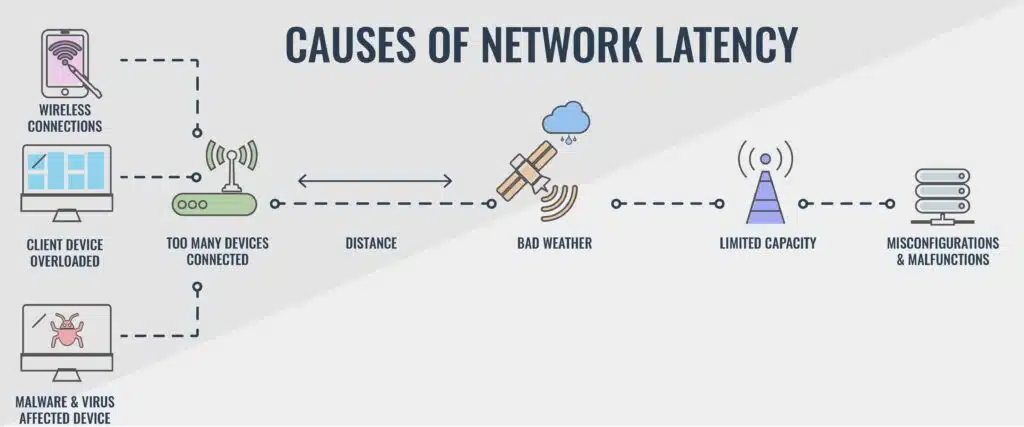
Latency is the speed of traffic on your network. As such, you can’t really speak in terms of ‘good’ or ‘bad’ latency. Acceptable transfer times vary according to the application being used. Video playback and interactive VoIP calls need faster speeds than email delivery. So, you need to work out what speeds you need for your network traffic in terms of the services you provide to your users.
Measuring latency
Latency is always expressed in milliseconds (ms). However, there are two metrics that express latency. Whichever you choose to use for the tests on your network, try to keep all records in the same test category.
The most common measure of latency is called ‘round trip time’ (RTT). As the name suggests, this is the time it takes for a packet to get from one point on the network to another. The alternative measurement is called ‘time to first byte’ (TTFB). This records the time difference between the moment the first part of a packet left one point on the network and the time that it arrived at the destination. RTT is used more frequently than TTFB because it can be run from one location and doesn’t require special data collection software to be installed on the remote destination.
Using Ping
Every network-connected computer has a free latency testing tool built into the operating system, which is called Ping. This facility works on the Internet Layer protocol, the Internet Control Message Protocol (ICMP). Every network administrator uses Ping and it is a useful tool for a quick check. You don’t need to install any software on the remote computer and you get a report back to the computer from which you launch the command.
A typical Ping execution will send 32 bytes of data to a given destination and record the time that a response arrived back. The latency is expressed as the round trip time that includes both the transfer time for the test packet and the response packet. That time is shown in milliseconds.
You don’t have to know the destination IP address if you are testing the RTT to a website because Ping will accept the domain name as an address instead of the actual IP address. By default, Ping will send out four test packets, but an option on the command enables you to specify a different number of tests.
The results of the Ping command shows the RTT for each test and then summarizes the results. You will see the number of packets sent, the number of responses received, and the number of packets that were lost. You will also see the lost packet tally expressed as a percentage of all tests made. A second summary line shows you the minimum, maximum, and average round trip time for the test batch.
Problems with Ping
Ping is great for a quick investigation when a specific path seems to be running slow. However, the tool isn’t going to help you fix latency problems and it doesn’t allow you to check multiple paths with one command. Fortunately, several more sophisticated Ping-based tools are available. These usually enable you to test multiple paths from the same console. You can also often run a Ping test continually with some tools. These constant Ping tools give a live display on the results of the latency test.
Latency solutions
Latency is a complicated issue that can be managed through traffic-shaping methods, such as queuing algorithms. You can prioritize some traffic with a range of ‘quality of service’ (QoS) methodologies. These enable you to get time-sensitive application traffic through all network devices ahead of all other traffic. This is great if you provide live video delivery of IP telephony apps on your network.
Giving some traffic a clear run through the switches and routers on your network can cause other traffic types to get held up. However, a few minutes of delay in the transfer of an email is a price worth paying if it saves you from replacing your network cable to provide enough bandwidth for all of your traffic to get through at top speed.
The best latency testing tools
There are some great network latency testing tools out there. Many will enable you to test other network conditions as well. For example, jitter is a measure of the variation of the arrival rate of packets in a stream. An irregular pace in the arrival of packets can cause just as many service problems with video streaming and IP telephony as slow delivery.
Another useful metric is the available bandwidth on each stretch of your network – you should keep track of the potential capacity, the median utilization, and the maximum utilization of those links.
This information will enable you to plan for capacity requirements when your business managers ask for new software to run over the network, or to add on new endpoints for increases in staff levels.
1. Site24x7 Network Monitoring (FREE TRIAL)
Best for: Multi-layer network visibility.
Relevant for: IT admins responsible for managing hybrid and multi-vendor networks.
Price: Pro $35, Classic – $89, Enterprise – $225 (all priced per month, paid annually).

Site24x7 is a cloud-based platform of system monitoring tools. One of those tools is its Network monitor. This tool is integrated into all of the plans offered by Site24x7. Those plans are:
- Website Monitoring
- Site24x7 Infrastructure
- Application Performance Monitor
- All-in-one
- MSP
The Network monitor has two elements. One is an SNMP-based device performance monitor and the other is a bandwidth analyzer. The traffic analysis module communicates with network devices to extract traffic data. The protocols that the monitor can use are:
- NetFlow
- J-Flow
- sFlow
- CFlow
- IPFIX
- NetStream
- AppFlow
The traffic analyzer is able to display traffic flow volumes per link and it can show those statistics by application and by source and destination, listing the largest traffic generators in each category. This data is available live in the dashboard and it can also be stored for historical analysis as part of a capacity planning exercise.
Key Features:
- Cloud-Based Platform: Offers flexibility and accessibility in monitoring.
- Integrated Traffic Analysis: Provides thorough insights into network traffic patterns.
- Real-Time Data Utilization: Builds dynamic charts and network maps.
Unique Business Proposition
This cloud-based monitoring solution provides deep insights into network performance across multiple devices. According to the website, it supports devices from more than 450 vendors and even provides seamless integration among them, making it easier to identify latency and bandwidth issues.
Feature in Focus: ISP Monitoring Tool
Its ISP monitoring tool provides hop-by-hop analysis of network paths to provide metrics like latency and jitter. Using this information, users can easily identify points causing latency and packet loss.

Why do we recommend it?
Site24x7 Network Monitoring is part of a cloud-based SaaS package of system monitoring tools. The package provides both network device monitoring and traffic analysis. The tool shows live traffic pattern graphs and also enables QoS testing on specific links when throughput graphs identify problems. This gives a latency report among other traffic condition measurements
Traffic levels can be shown on a time-series graph. Looking at the range of volumes over time lets you see very easily when peaks in traffic volumes occur. Switching data sources to see the flow per application or per source shows where that traffic is coming from. The tool enables technicians to implement Quality of Service traffic shaping measures to help overwhelmed devices.
The network monitoring service includes a series of performance thresholds that trigger alerts if crossed. These alerts appear in the system dashboard and can also be sent to technicians by SMS, email, voice call, and instant messaging post.
Who is it recommended for?
The Site24x7 system provides modules to monitor different IT systems, such as network devices, software, and endpoints, but it sells these services in bundles, so you get the whole lot, not just network monitoring. The subscription plans are levels in capacities that suit small businesses and then larger businesses pay higher fees for extra capacity.
Pros:
- Comprehensive Monitoring: Tracks latency, bandwidth, and infrastructure issues effectively.
- User-Friendly Design: One of the most intuitive network monitoring tools available.
- Versatile User Monitoring: Bridges technical and business metric gaps efficiently.
Cons:
- Learning Curve: Requires time investment to master its detailed features and options.
Site24x7 is a subscription service and there are no setup fees or deposits. There is no contract requirement or minimum service period. You can get a 30-day free trial of any of the Site24x7 plans.
2. ManageEngine OpManager (FREE TRIAL)
Best for: WAN and VoIP latency monitoring.
Relevant for: IT teams of large enterprises.
Price: Depends on the number of devices.
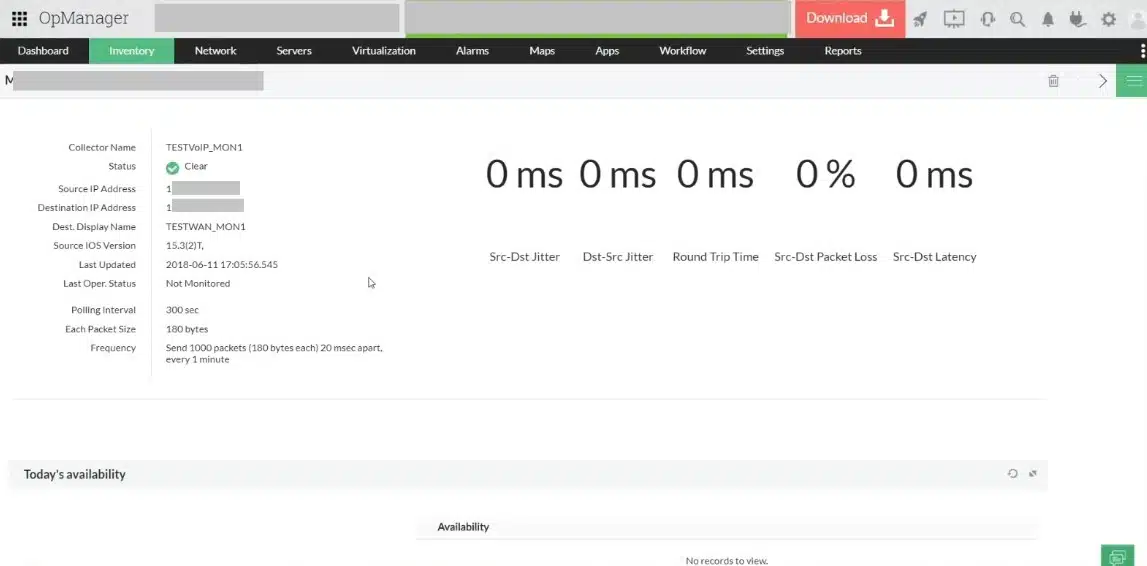
ManageEngine OpManager is a network and server monitoring package that includes the Network Latency Testing Tool. This system is based on Ping and it will give you repeated tests across a network to a specific device or across the internet to check on communications between sites in a WAN.
This system is particularly important for those businesses that use VoIP extensively. Overburdened networks can be tuned to speed up VoIP traffic by queuing the traffic of other applications to let voice packets through faster. However,f this strategy breaks down if you have your telephone system running over the network. In that case, you either have enough capacity or you don’t – shifting traffic priorities won’t help you avoid upgrading your equipment.
Key Features:
- WAN Latency Testing: Ideal for monitoring inter-site connections.
- VoIP QoS Tool: Assesses VoIP quality, including latency on individual links.
- Mean Opinion Score (MOS): Provides a standardized measure of voice call quality.
Unique Business Proposition
This comprehensive tool can monitor up to 2,000 metrics across multiple devices and vendors. Such metrics help IT admins diagnose network paths with high latency and back them with a detailed hop-by-hop analysis to identify the root cause.
Feature in Focus: WAN RTT & Latency Monitor
This monitor allows you to accurately detect latency issues without requiring traceroute across every network station. It also displays the hop-by-hop analysis of latency graphs in a single window for detailed understanding. You can also configure thresholds and track their performance through this monitor.

Why do we recommend it?
ManageEngine OpManager monitors networks and servers. This is primarily a network device monitor, similar to the SolarWinds Network Performance Monitor. You get more detailed traffic analysis with the ManageEngine NetFlow Analyzer. However, OpManager does include a WAN latency tester and a local network VoIP QoS testing tool that shows latency per link.
The full ManageEngine OpManager package provides many other functions, including autodiscovery, device monitoring, inventory creation, and network topology mapping. The software for OpManager will run on Windows Server or Linux. If you have an AWS account, you can find OpManager in the AWS Marketplace to run it there.
Who is it recommended for?
ManageEngine provides a base price for its PRofessional edition to monitor LANs that is based on 10 devices. This is a size that is appropriate for small businesses. Larger businesses pay more to monitor bigger networks. There is also an edition for WANs. ManageEngine offers a Free edition that covers only three devices.
Pros:
- Jitter and Packet Loss Checks: Delivers detailed network performance reports.
- Comprehensive Testing: Covers both network and inter-site latency issues.
- Performance Over Time: Offers valuable historical data for network analysis.
Cons:
- AWS Version Limitation: The AWS version lacks the full SaaS package flexibility.
Access a 30-day free trial of the on-premises version.
Related post: How to Fix Packet Loss
3. Network Pinger
Best for: Packet loss checks.
Relevant for: Individuals who need a simple diagnosis of their connectivity.
Price: Free.
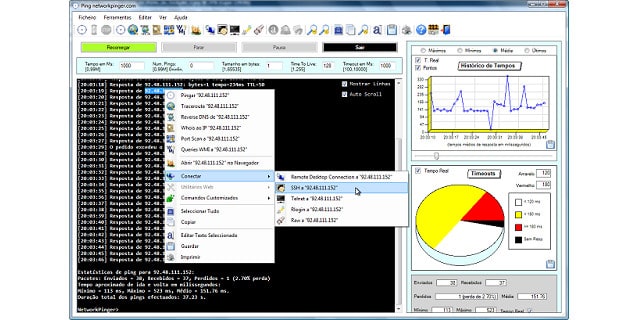
Network Pinger is a free tool that runs on Windows. This simple utility has a great-looking interface that is taken up mainly by a display panel for the results of your sweep. That output is a recursive Ping. It will test all destination IP addresses that lie within the range that you enter as a parameter of the search. Side panels show graphical representations of the data collected by the sweep. These include a pie chart of contact status and a line graph that shows response times. You also get to see the RTT (Round Trip Time) for each contact attempt.
Key Features:
- Recursive Ping: Efficiently tests multiple IP addresses within a specified range.
- Graphical Representations: Offers visual insights into ping results.
- Integrated Utilities: Includes Traceroute, Remote Desktop, and other network tools.
Unique Business Proposition
Network Pinger is a simple and straightforward solution for checking latency and packet loss in a network. It also provides real-time ping statistics to identify the root cause of the problem.
Feature in Focus: CommPeak Portal
The CommPeak Portal is a comprehensive dashboard that allows you to see data in a clear and understandable format. Specifically, it displays data related to latency and packet loss, enabling users to make informed decisions.
Why do we recommend it?
Network Pinger provides the one tool that everyone uses to measure latency: Ping. This is a free tool that has some nice extras that you normally wouldn’t expect without having to pay. It shows graphs of Ping results and it also includes a Traceroute utility. There are a few other extras in this handy free tool.
As well as a Ping function, Network Pinger includes a Traceroute facility that will give you the response times of each hop in a link to a given destination address. The tool also has a switch port mapper. You can contact remote computers through the tool by using the built-in Remote Desktop, SSH, Telnet, and Rlogin utilities.

Who is it recommended for?
Any network manager would benefit from having Network Pinger. It’s free and so there is no downsized to using the system. Sweep the whole network, Ping one device constantly, or run on-demand checks with this utility. This tool runs on Windows, so if you only have Linux machines, you need to look elsewhere.
Pros:
- Visual Tracking: Enhances understanding of network performance through graphs.
- Additional Features: Provides useful tools like IP calculator and switch port mapper.
- Subnet Scanning: Capable of scanning larger networks and filtering by subnet.
- Cluttered Interface: Can become overwhelming on large networks.
Cons:
- Short-Term Monitoring: More suited for quick checks rather than long-term analysis.
Related post: Ping Sweep Tools
4. Paessler Network Latency Sensors with PRTG
Best for: Latency and QoS monitoring.
Relevant for: IT teams that manage complex networks across multiple locations.
Price: The price depends on the number of aspects and devices you use. The base price is $179 for up to 500 aspects and 50 devices.
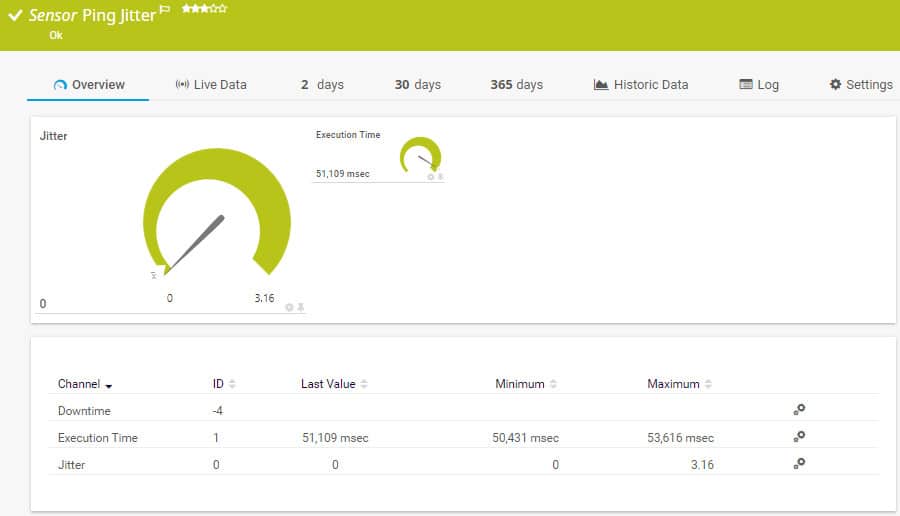
Paessler PRTG is a comprehensive network infrastructure monitoring tool. It covers networks, servers, and applications. The PRTG system is composed of many utilities, which are called ‘sensors’. Each sensor monitors a piece of hardware, a system condition, or a service.
Key Features:
- Ping Jitter Sensor: Monitors device availability and packet round-trip time.
- Cisco IP SLA Sensors: Provides in-depth VoIP connection quality metrics.
- QoS Sensor Pair: Measures round-trip and one-way packet latency.
- Autodiscovery Feature: Automatically identifies and maps network bottlenecks.
Unique Business Proposition
PRTG is a versatile product that comes with 250+ preconfigured sensors that monitor latency, jitter, and packet loss in real time. It uses remote probes to gather data about different metrics, making it ideal for a distributed environment. Its customizable dashboards and alerting mechanisms also help you stay on top of issues.
Feature in Focus: QoS Round Trip Sensor
As the name suggests, this sensor measures parameters, like the round-trip time, jitter, and latency between two probes. Using this information, IT teams can proactively identify and fix network-related issues. It can also monitor VoIP metrics.
Why do we recommend it?
Paessler Network Latency Sensors with PRTG offers on-demand or continuous tests for network performance. PRTG offers a large bundle of monitoring tools and you choose which to activate. There are several that measure connection latency, which are mostly based on Ping. The tool can also provide jitter measurements.
One of the sensors available in the PRTG package is a Ping Jitter Sensor. This tool is included to create checks on network device availability, but it also gives you the round-trip latency time of packets to those destinations.
The PRTG package includes a couple of other sensors that will give you some great latency measurements. These are the Cisco IP SLA sensors. The latency information this sensor gives you all relate to factors that can damage the quality of VoIP connections. These factors include round-trip time, packet arrival sequence, packet loss, and jitter. Another latency-measuring option in PRTG is the QoS sensor. This is actually two sensors. One gives you the round trip time of packets and the other is a one-way latency, so this is one of the few tools available to provide the time to the first-byte metric.

Who is it recommended for?
Paessler PRTG is suitable for use by any business. The tool is particularly beneficial for monitoring a single LAN. However, some tools in the package can test internet connections between sites, such as the main Ping sensors. PRTG’s price depends on how many sensors you want to use and the package is free if you only activate 100.
Pros:
- Comprehensive Monitoring: Offers extensive tools for application, server, and network monitoring.
- Customizable Sensors: Enables tailored monitoring solutions for diverse needs.
- Template Variety: Supports a wide range of applications and devices with sensor templates.
- Insightful Autodiscovery: Efficiently identifies latency issues and their sources.
Cons:
- Pricing Model Complexity: The cost depends on sensor activation, which can be confusing.
Every customer gets the full PRTG software package. The pricing model for the system depends on the number of sensors that the customer turns on. If you only activate up to 100 sensors, you can use the system for free. Paessler offers a 30-day free trial of PRTG with unlimited sensors.
5. Obkio
Best for: Real-time latency diagnostics.
Relevant for: IT teams working in distributed environments.
Price: Starter, priced at $249 per month for five agents, five devices, and two users; Basic, priced at $499/month for 10 agents and devices, and two users.

Obkio is a network monitoring tool that provides real-time insights into network performance across multiple environments. It is designed to monitor key metrics such as packet loss, jitter, and latency, allowing IT teams to quickly identify and troubleshoot network issues. With distributed agents, Obkio continuously monitors network traffic between various locations, devices, and services and it will also watch the statuses of network devices.
Key Features:
- Latency Detection: Monitors and detects latency across network paths to ensure optimal performance.
- Packet Loss and Jitter Monitoring: Tracks key metrics to detect performance bottlenecks affecting real-time services like VoIP and video conferencing.
- Distributed Monitoring Agents: Deploys agents on-premise and in the cloud for comprehensive, end-to-end network monitoring.
- Activity Graphs: Provides great data visualization features in the system console.
- Tracks Physical and Virtual Systems: Can measure activity in virtualizations, such as VMware and Hyper-V as well as between physical endpoints.
Unique Business Proposition
It offers continuous monitoring using synthetic traffic to proactively detect latency issues across complex architectures. Its agent-based approach offers visibility into local and remote segments, making it a good choice for distributed environments.
Feature in Focus: Obkio Vision
Obkio Vision, its visual traceroute tool, provides detailed data on network paths through hop-by-hop analysis of latency and jitter. It also creates a graphical network map and a quality matrix to enable users to visualize performance across network segments.
Why do we recommend it?
We recommend Obkio for its ability to offer real-time, in-depth monitoring of network traffic, particularly its excellent latency detection. It is easy to deploy, provides distributed monitoring across different environments, and includes a user-friendly interface. Its proactive alerting system ensures IT teams can quickly address network issues, preventing significant performance drops.
Obkio’s real-time monitoring capabilities use a range of techniques in its latency detection routines. These include Ping and Traceroute. It can be applied across a network or to links over the internet. The system is adaptable because it operates network tests between two agents. So, the links that it examines are determined by where the administrator chooses to install those data collection agents.

Who is it recommended for?
Obkio is recommended for small to medium-sized businesses that rely on cloud-based services or real-time communication tools like VoIP and video conferencing. It is ideal for IT teams looking for an easy-to-use, proactive monitoring solution that can detect and resolve network issues in real time. Businesses with multiple sites or remote offices will particularly benefit from its ability to monitor traffic across multiple locations.
Pros:
- Real-Time Alerts: Sends customizable notifications when performance thresholds are breached.
- Historical Performance Reports: Provides insights into long-term network trends for proactive performance management.
- Network Device Monitoring: Uses SNMP.
- Cloud-Based: As a SaaS application, Obkio stores information in the cloud, making it easy to install and use.
- Plans for Educational Institutions: A special price for schools, colleges, and universities.
Cons:
- Limited to Monitoring: Does not include broader network management features like configuration or security.
Obkio is available for a 14-day free trial.
6. SolarWinds Network Performance Monitor
Best for: Enterprise-grade latency diagnostics.
Relevant for: Large organizations.
Price: Negotiated price.
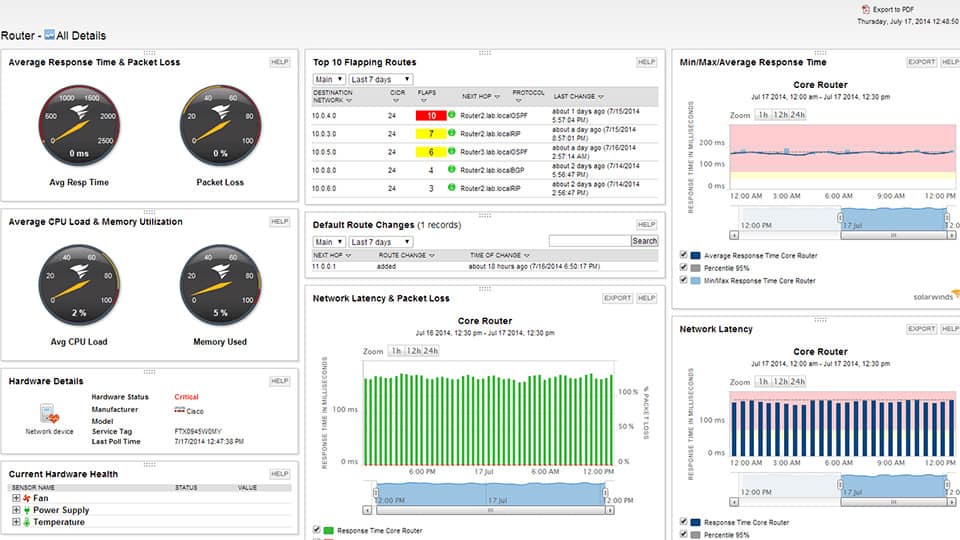
SolarWinds produces an excellent range of infrastructure monitoring tools and its core module is the Network Performance Monitor. All of SolarWinds’s system management systems are written on a common platform, so they can all interact to create a total management system.
Key Features:
- Quality of Experience Dashboard: Showcases network response times and latency.
- SNMP Monitoring: Efficiently tracks network device performance.
- Network Topology Maps: Visualizes network structure for easier management.
Unique Business Proposition
This network performance monitoring platform has advanced features that track latency, packet loss, and jitter. More importantly, it correlates this information with the wider infrastructure to give you a holistic view of the network’s performance and issues. Such detailed information can ease troubleshooting.
Feature in Focus: NetPath
This feature provides a visual representation of hop-by-hop analysis to help IT admins better understand the cause of latency between source and destination nodes. It also supports the correlation of these metrics across devices and timelines for in-depth troubleshooting.
Why do we recommend it?
SolarWinds Network Performance Monitor is the leading network monitoring tool and it provides many tools for automated network supervision. There aren’t many traffic analysis tools in this package because it focuses on network device statuses. However, the tool continuously checks on latency with Ping. The tool also has an on-demand ping facilitiy.
This monitoring tool can keep check on all of your network devices. Most of the monitoring system is informed by the SNMP messaging system. This enables devices to notify the central controller of any performance issues.
The Network Performance Monitor includes latency testing facilities in the Quality of Experience dashboard. This shows network response times and network latency.
The benefit of buying in a complete monitoring system rather than just a latency test utility is that the discovery of slow segments is just the first task – you then have to fix the problem. Data gathered by the Network Performance monitor will help you work out exactly what is causing traffic to be delivered slowly. You can spot which network devices are experiencing errors and which are overloaded.
You will also be able to get information that Ping can’t tell about why your users are experiencing poor response times. Imagine if you get complaints of slow performance at the Help Desk but your Ping time test shows no problem. Slow software delivery is not always the fault of the network. With a full performance monitor, you will be able to identify bottlenecks on paths, congestion on ports, and overloaded CPUs on servers.

If you opt for the SolarWinds Network Bandwidth Analyzer Pack, you can enhance your traffic monitoring capabilities. In this pack, you get the SolarWinds NetFlow Traffic Analyzer as well as the Network Performance Manager. This tool increases information on network activities by examining traffic volumes between network devices.
All of these SolarWinds products install on Windows Server. You can get a 30-day free trial of the Network Performance Monitor, the NetFlow Traffic Analyzer and the Network Bandwidth Analyzer Pack.
For a free network testing tool, give the SolarWinds Flow Tool Bundle a try. This set of tools uses NetFlow v5, which was invented by Cisco Systems. NetFlow captures packet headers as they pass through the router and the system is also capable of compiling aggregated summaries of traffic data directly in the router.
Once you have captured passing packet headers, you can run them through the network again to get a replay of actual events and see how your equipment performance influenced latency. Another feature in the tool pack will generate extra traffic for you so you can test network performance and latency by adding on services or endpoints.
Who is it recommended for?
SolarWinds Network Performance Monitor is ideal for mid-size and large businesses. IT is able to monitor multiple sites and the internet connections between them but its optimum activity is single LAN monitoring. You get the best latency monitoring tools if you combine this package with the SolarWinds NetFlow Traffic Analyzer.
Pros:
- Protocol Versatility: Supports NetFlow and other protocols for comprehensive monitoring.
- User-Friendly Interface: Highlights network issues effectively for quick resolution.
- Scalable Design: Ideal for large enterprise networks with complex requirements.
Cons:
- Enterprise Focus: Not designed for small or home networks, limiting its accessibility.
7. ManageEngine Free Ping Tool
Best for: Quick availability checks.
Relevant for: IT teams that need a lightweight diagnostic tool.
Price: Free
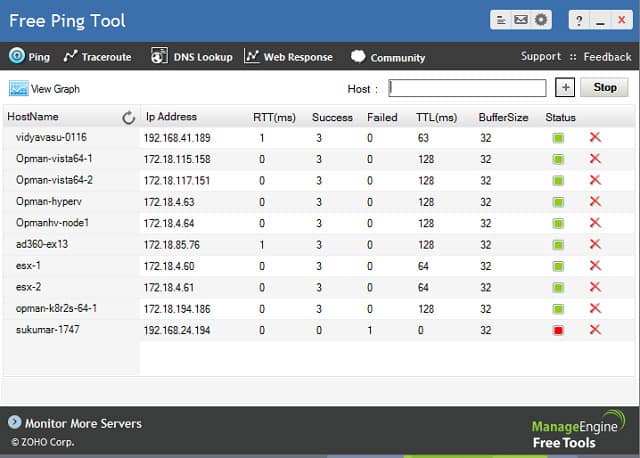
This great ManageEngine utility is actually a Ping and Traceroute tool. The free package also includes a DNS Lookup feature and a specialist measure of response times for websites.
Key Features:
- DNS Testing: Includes a DNS tester for additional network insights.
- Web Connection Tester: Evaluates website response times using Ping.
- Ping and Traceroute: Offers essential network testing functionalities.
Unique Business Proposition
This is a standalone desktop application that can monitor the availability and performance of up to 10 devices simultaneously. It uses ICMP ping requests to gather real-time metrics, like round-trip time, time-to-live, packet loss, and jitter. Using this information, you can quickly identify connectivity issues.
Feature in Focus: Traceroute
The Traceroute functionality is built into this tool, so you can trace the path that packets take to reach their destination. With this combined data, you can identify the exact locations where delays and failures occur. You can even generate and email reports of this data.
Why do we recommend it?
ManageEngine Free Ping Tool is a handy little package that offers Traceroute as well. There are a few other tools in this utility, such as a DNS tester and a Web connection tester, which is also based on Ping. This package is very similar to the Network Pinger but it doesn’t create graphs.
The Ping section of this tool shows each of the given hosts and the Ping data for each, including the round trip time. The screen will keep refreshing giving you live updates on the RTTs to your list of IP addresses.
One problem with the tool is that you have to enter each address individually rather than by entering an address range. However, once you have those entered on the screen, they will stay there even when you have to stop the monitor to switch to other utilities. The Ping results can also be shown on a time series line graph.
The Traceroute utility shows you the round trip time on each hop of a route to a given destination and shows a bar alongside. This makes that RTT easy to understand, highlighting the hops that took the longest to cross.
The DNS lookup utility will refer to your local network DNS server, or the closest internet-based server if no local records exist for the URLs that you enter. You can enter either an IP address or a URL as the search term for this utility.
The Web Response tab gives you a nice graph of the response time to the Web server for a given website address. This graph will continue to update and it shows you the RTT broken down between TCP session establishment, redirection time, and web page response time.
This is a great little tool and you can also get reports printed from it in PDF format, which you can save or email.
Who is it recommended for?
This is the same Ping function that you can access within OpManager, so if you are only interested in measuring latency and not using the device monitoring functions of OpManager, get this tool instead. This system is only available for Windows, so you need to find something else if you only run Linux.
Pros:
- User-Friendly: Simplifies testing for non-technical users with an intuitive interface.
- Versatile Testing: Effective for on-site tests and smaller network environments.
- Portable Deployment: Can be easily used from a thumb drive for convenience.
Cons:
- Limited Enterprise Use: Not suitable for extensive, long-term network monitoring.
8. PingPlotter
Best for: Visual path analysis.
Relevant for: Remote support teams and network administrators.
Price: Standard – Suitable for a single device, priced at $6.99/month; Professional – Suitable for a single office, priced at $29/month; Remote Teams – A cloud-based solution that starts at $90/month.
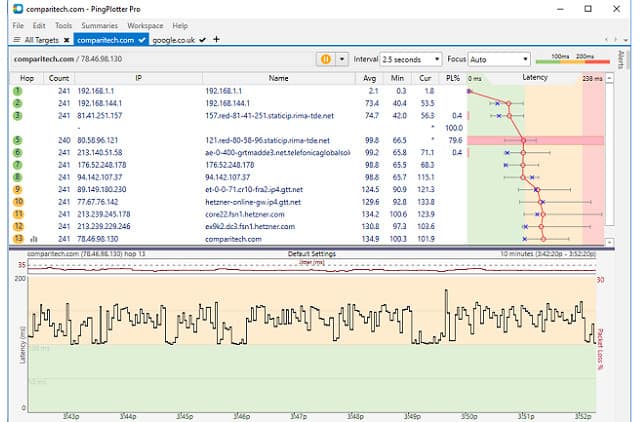
PingPlotter is available in three editions: Free, Standard, and Professional. The free version is actually a 14-day free trial of the Professional edition. All versions of the tool implement Ping and Traceroute, giving results of both tests in graphical format.
Key Features:
- Multiple Editions: Offers Free, Standard, and Professional versions.
- Continuous Testing: Allows ongoing ping to a target for real-time monitoring.
- Tabbed Interface: Facilitates simultaneous monitoring of multiple sessions.
Unique Business Proposition
This tool uses real-time data to provide intuitive visualizations for better understanding the cause of latency issues. Also, its remote diagnostics feature makes this tool ideal for monitoring and troubleshooting remote devices. It supports both desktop and cloud-based deployments as well.
Feature in Focus: Graphical Interface
PingPlotter’s graphical interface shows the performance of relevant metrics in real-time and in visually appealing formats. Using this data, IT admins can visualize the route, and identify the bottlenecks along the path. This information can improve performance and reduce latency.
Why do we recommend it?
PingPlotter provides Ping and Traceroute in combination to give you a range of connection testing utilities that display latency per link and end-to-end between two points. This system is available for installation on Windows, macOS, and iOS, so it can be used to test wireless networks as well as LANs. There is also a cloud-based service.
The console for the tool has a tabbed display panel, much like a Web browser. For each target, you start a new tab, which shows a list of the hops between your computer and the destination. Tests keep running live and accumulated results for the latency on each hop is shown in three data columns. These show the average, minimum, and current round-trip times for that hop.
A visualization column at the end of each row plots the minimum, maximum, and average RTT on a line. A vertical line graph runs along all of the records in the display which plots the current RTT for all hops. A lower panel in the main screen shows both the latency and jitter for the current connection over time. A summary tab shows you latency results for all currently open network connections in the test system.

This is a great tool that will install on Windows, iOS, and Mac OS. The free version only stores the history for 10 minutes, but the two paid versions show data transmission over an unlimited time frame. The paid versions also include an alerting system and you can choose to run TCP or UDP Ping tests – only ICMP Ping is available with the free edition.
Who is it recommended for?
PingPlotter isn’t a free tool but it does more or less the same as the free tool from ManageEngine and PingPlotter. However, there is an advantage to this tool in that it provides a path view for its Traceroute tests, which those rival systems don’t offer.
Pros:
- Versatile Versions: Provides options for different user needs, including a free version.
- Graphical Latency Insights: Offers visual representation of latency across devices.
- Continuous and One-Off Testing: Suitable for various testing scenarios.
Cons:
- Limited Trial Features: Some functionalities like TCP/UDP tests are not available in the free version.
Related post: Best PingPlotter Alternatives
9. NirSoft NetworkLatencyView
Best for: Passive TCP latency monitoring.
Relevant for: Windows users who need a lightweight tool for monitoring latency.
Price: Free
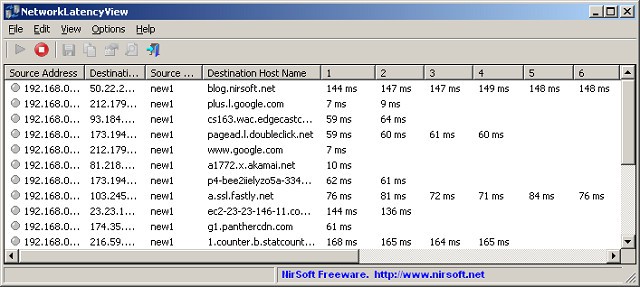
The NetworkLatencyView tool from NirSoft is a little different than all of the other latency testers on this list. Rather than examining links to a given destination, the utility listens for all new TCP connections and monitors while they persist. This system doesn’t issue Ping tests. It extracts packet latency information from live packets passing along the network and operates at the Transport Layer.
Key Features:
- TCP Connection Monitoring: Observe new TCP connections for latency data.
- Non-Ping Methodology: Extracts latency info from live traffic, not using Ping.
Unique Business Proposition
This is a portable utility that monitors TCP connections on Windows systems. It can provide up to 10 latency measurements per IP address, making it easy to identify potential network issues. It can also export data in various formats, like CSV, HTML, and XML.
Feature in Focus: Real-time Latency Monitoring
Its real-time latency monitoring feature can passively listen to TCP connections, without the need to send packets. It also leverages drivers like WinPcap and Microsoft Network Monitor to improve accuracy.
Why do we recommend it?
NirSoft NetworkLatencyView has a surprising technique for a small free tool. It doesn’t use Ping to test a path between to points, but it listens to existing traffic and derives latency data from that. This is a sophisticated method that addresses the main problem that network administrators have with Ping, which is that it doesn’t actually show traffic speeds.
This is a free tool and it installs on Windows. The display window can show up to 10 Ping test RTT values for each detected network connection. It also shows the average of those ten tests. This makes the display area very wide. However, you can resize columns, stretch the window, or scroll to the right to see all of the data. Results can be saved to CSV, HTML, XML, tab delimited, or text file for analysis in other apps.
Who is it recommended for?
This tool shows live traffic speeds rather than the test results of Ping. This is a useful tool for network managers who wonder whether real traffic is actually behaving the same way that packets in a Ping test do. The tool is only available for Windows.
Pros:
- Innovative Approach: Offers unique insights by monitoring actual traffic rather than simulated tests.
- Simple Interface: Facilitates quick identification of latency issues.
- Multiple Export Formats: Allows exporting results in various file types.
- Platform Limitation: Only available for Windows, not supporting Linux or Mac.
Cons:
- Basic Interface: Lacks graphical representation and is less suitable for large networks.
10. Angry IP Scanner
Best for: Fast IP and port scanning.
Relevant for: IT admins who require quick network audits.
Price: Free
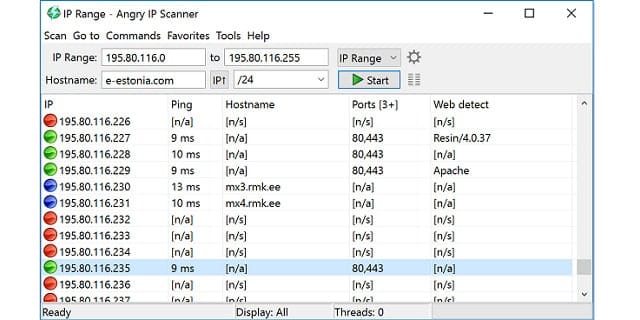
Angry IP Scanner is a free Ping utility that will run on Windows, Linux, and Mac OS. The straightforward layout of the interface makes this a useful tool for busy system administrators. You can start a Ping sweep either by entering ‘from’ and ‘to’ IP addresses or by entering a hostname and a CIDR notation offset. It is also possible to enter a non-consecutive list of IP addresses by loading them into the interface from a file.
Key Features:
- Cross-Platform Compatibility: Runs on Windows, Linux, and Mac OS.
- Port Scanning: Includes options to scan for open ports on network devices.
- Flexible Input: Supports a range of input methods for address specification.
Unique Business Proposition
This open-source and cross-platform network scanner supports multiple pinging methods, like ICMP Echo, ICMP, and UDP protocols. It also provides a ton of flexibility in configurations and user privileges. Its multithreaded approach scans multiple IP addresses simultaneously to improve the overall network efficiency.
Feature in Focus: Measure RTT
A highlight of this tool is its ability to measure RTT for every scanned host. It can adjust scanning speed and timeouts to improve performance and accuracy, especially in dynamic networks that need real-time data. It also provides the option to export data in various formats.
Why do we recommend it?
Angry IP Scanner is a widely-used network tester that, as of March 2023 has more than 29 million downloads. This system offers Network Layer testing with Ping to discover which IP addresses are in use and those results also show the latency on connections to devices that respond. Transport Layer tests are also possible.
The tool will ping every address within the given range and show each in the output. This can result in a lot of unused addresses appearing on the screen. You can avoid this large number of irrelevant records by setting in the Preferences section of the tool that only live IP addresses should be shown. This requirement can be refined further by an option that limits the output list to show just those hosts that have open ports.
Tests can be carried out with the classic ICMP message, with TCP, or with UDP. Although the utility will ping many hosts in one run, it will only run each Ping probe on demand. The service does not repeat continuously. If you want to refresh the report, you will need to push the Start button again.
The default output only shows the average RTT for each discovered IP address along with the hostname of that destination and the number of open ports on that device. You can customize the output screen by selecting extra data categories. These include a Packet Loss field.
The number of tests issued is dictated by one of the settings in the Preferences screen. The default number of probes is three per address. The output of a test can be exported in CSV, XML, text or IP-Port format.
Who is it recommended for?
As it is free to use, this tool is suitable for use by any network manager for a quick scan of the network. However, it is more likely to appeal to small businesses that don’t already have a full network management package to scan for IP addresses. The system is available for Windows, macOS, and Linux.
Pros:
- Wide Accessibility: Useful across different operating systems.
- Export Flexibility: Allows exporting results in multiple formats.
- User-Friendly: Simplifies network scanning for technical and non-technical users.
Cons:
- Enterprise Limitations: Not ideal for monitoring large-scale enterprise networks.
- No Graphing Tools: Lacks advanced visualization capabilities for network analysis.
11. Pinkie
Best for: Multi-tool network diagnostics.
Relevant for: Windows-based environments.
Price: Free
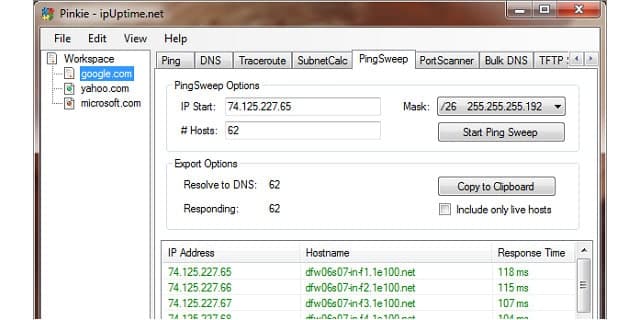
Pinkie is a suite of network monitoring tools that includes a Ping sweep option. The tool is free to use and will run on Windows.
Key Features:
- Bundled Network Tools: Includes a suite of network monitoring utilities.
- Range-Based Ping Sweep: Tests a range of IP addresses efficiently.
- Additional Network Functions: Offers port scanning, subnet calculation, and more.
Unique Business Proposition
Pinkie is a simple tool used for diagnosing and resolving network issues. It has many features, like the ability to continuously ping multiple hosts, forward and reverse DNS lookups, ping sweep, port scanning, and subnet calculation. Its intuitive interface is also a great addition to its capabilities.
Feature in Focus: Continuous Ping
Its continuous ping feature allows users to monitor the availability and response times of multiple hosts simultaneously by providing real-time data on network latency. Its traceroute and pingsweep capabilities can scan a wide range of IP addresses to detect issues.
Why do we recommend it?
Pinkie is similar to Network Pinger and the ManageEngine Free Ping tool because its interface offers a range of connection testing tools in addition to Ping. The system provides you with Traceroute as well so, you can check on the latency of each link in a path to a destination.
The tool also includes a straightforward Ping option, which will probe just one destination IP address, which can also be entered as a URL. This feature will continue to issue Ping packets to the target, showing the RTT and also the ‘time to live’ setting entered in each probe packet.
The Ping Sweep option will test a range of addresses. However, the test is not continuous and you have to relaunch the utility by pressing a Start Ping Sweep button to get the results refreshed. A checkbox in the search section of the screen enables you to exclude IP addresses that are not live. The results in this screen show the IP address, the hostname, and the RTT of that probe. The Ping Sweep output can be copied to the clipboard and then pasted into a text file.
Other utilities in Pinkie are a port scanner, a Traceroute implementation, a DNS lookup function, and a bulk DNS reference facility, which uses a list of addresses from a file. There is also a subnet calculator and a TFTP server in the bundle. This is a very useful pack of tools that help you keep all of the facilities you need to check on your entire network in one interface.
Who is it recommended for?
This is another option for small businesses because it is free to use. Its extra utilities are nice to have on hand. Those extras make this package more useful than Angry IP Scanner. However, unlike that rival free tool, Pinkie is not available for macOS or Linux – only Windows.
Pros:
- Comprehensive Toolset: Provides various essential network tools in one package.
- Free Utility: Accessible without cost, beneficial for small businesses or home use.
- Diverse Capabilities: Supports external domain and server address finding.
Cons:
- Limited Interface Design: The interface can be clunky and less intuitive.
- No Advanced Reporting: Lacks extensive reporting options and graphical tracking.
12. NetScan Tools
Best for: Advanced multi-protocol latency diagnostics.
Relevant for: Network engineers and security analysts.
Price: $699 for one license, $1,349 for two, $1,889 for three, and $2,989 for five licenses, respectively.

NetScan Tools Basic Edition is a free set of network testing tools that runs on Windows. The tool is free because it is supported by advertisements. If you want to get rid of those ads, you can buy NetScan Tools Pro. You get three Ping-based utilities in both editions of NetScan Tools. The package also includes a Traceroute facility, so you have four ways to test the latency of your network.
Key Features:
- Ad-Supported Free Version: Offers essential network tools with advertisement support.
- Graphical Ping Options: Visualizes Ping results for easier interpretation.
- Traceroute Functionality: Provides detailed insights into network path latency.
Unique Business Proposition
This tool integrates over 50 network utilities into a single interface for an in-depth analysis of network health and performance. Its support for multiple protocols makes it ideal for almost any environment. Its automated reporting feature also helps for easy sharing of the metrics.
Feature in Focus: PingTrend Tool
One of the important tools in this suite is the PingTrend tool that supports high-frequency ICMPv4 packet transmission. This tool can capture detailed latency and jitter metrics, which can come in handy for making detailed analyses. Another useful tool is Graphical Ping, which provides real-time visualization of round-trip time to identify packet loss.
Why do we recommend it?
NetScan Tools Basic Edition, like Pinkie and Network Pinger, offers both Ping and Traceroute. There is a graphics-based Ping option and you also get DNS resolution. The package includes a Whois query tool and you can also check on DNS server records. Discover devices and check on transfer speeds with this tool.
The first of your Ping options is a straightforward graphical interpretation of the standard command. You enter a domain name, a hostname, or an IP address and the tool will send out five Ping probes to that destination. The output will show the RTT and time to live of each probe. You can alter the number of network packets sent in each run in the Settings menu.
A Graphical Ping option shows a constantly-executed Ping test to a single destination. Again, that target can be specified by hostname, domain name, or IP address. The test will keep repeating until you choose to stop it – even continuing when you move away from this screen to try a different utility. The line of the graph shows the RTT of each attempt.
A Ping Scanner lets you test a range of IP addresses. The output will show the results of a Ping test to every address within the given range. However, you can select to cut out non-responding addresses. The results include the IP address, the hostname, the round trip time, and a status report for each address in the range. A context menu on this screen is available when you click on the right mouse button. This enables you to print the output of the test or save it to a file.

The Traceroute tool gives you another view on your network latency. This shows every hop between your computer and a given destination address. The RTT of each hop is shown alongside the IP and address of each intermediate router. This command will run once. You have to reissue the command if you want to get an update on the speeds of each link in the connection.
Other tools in the pack are a DNS lookup feature and a Whois query tool.
Who is it recommended for?
This is a free tool that displays ads. You can pay for the Pro version to get rid of the adverts. The graphical Ping option is a nice rival to Network Pinger. This system is only available for Windows, so if you run macOS or Linux, you should go for Angry IP Scanner instead.
Pros:
- Versatile Budget Options: Accessible for any budget with free and paid versions.
- Lightweight Application: Can be run on a wide range of endpoints.
- DNS and Whois Tools: Enhances network testing with additional query capabilities.
Cons:
- Outdated Interface: The interface may feel cluttered, especially on larger networks.
- Windows-Only: Limits its use to Windows operating systems, excluding Mac and Linux users.
Choosing network latency test tools
Although there are many different methods for measuring latency on your network and across the internet, Ping is the most commonly used utility to test connection speeds. As you can see from our list of options for testing latency, all companies producing network monitoring tools for speed tests make sure to include a Ping tool in their applications.
In this guide, you have read about alternative tools that will provide you with latency testing facilities. Your first task, when narrowing down this list, is to examine the operating systems that each option will run on and only focus on those that run on the system on which you want to run your monitoring facilities. Fortunately, all of the latency monitoring tools on our list either have a free version, a free trial, or are completely free to use. Many of the tools are very lightweight and don’t take up much disk space, so you can download a few of them to compare their performance.
Do you test your network latency frequently? Which tool do you use? Do you rely on the standard command line Ping? Have you tried any of the tools listed in our guide? Leave a message in the Comments section below and share your experience with the community.
Our methodology for choosing network latency testing tools
At Comparitech, we follow a structured approach to evaluating different network latency tools and pick the ones that meet our criteria. We analyze features and user reviews and combine them with hands-on testing, where possible, to make our decision. The factors we considered are:
- We assess compatibility across environments. Our tools work well for most environments, like LAN, WAN, cloud, and hybrid networks, as well as with different operating systems. This wide compatibility ensures that the tool can be applied across different real-world scenarios.
- A tool’s core features are important for us. In this case, we picked tools with high latency accuracy, historical reporting, and real-time monitoring.
- Ease of use and deployment are prioritized to ensure wide adoption among employees.
- Integration is another key aspect, as we want our tools to integrate with popular platforms.
- Security is something that we take seriously at Comparitech, and hence, we check to ensure that our tools don’t open any security vulnerabilities in your network.
- Vendor support and pricing transparency are also considered while selecting the tools.
Broader B2B software selection methodology
The above aspects align with our broader B2B methodology, where we look for the features, compatibility across different environments, applicability across a wide range of use cases, ease of use, and vendor support. Our reviews are honest because we believe in taking a transparent approach to give you the right information, as your decisions can be based on what we provide. Hence, we take utmost care in presenting facts as they are.
Check out our detailed B2B software methodology page to learn more.
Why Trust Us?
We are renowned for the depth of information we provide on every tool, and our viewers appreciate us for the honest reviews. We combine multiple aspects of the tool to give you a holistic picture, so you can quickly decide which tool can work well for you.
How to Test for Network Latency FAQs
What is latency in the cloud?
Cloud latency is the time that passes between a client issuing a request and a cloud service launching a response. As the path from a client to a cloud server involves the public medium of the internet, the issue of latency in the cloud is difficult to resolve.
How do I locate WAN latency issues?
WAN latency involves measuring transmissions over three networks: the home network, the remote network, and the linking network, which could be a fixed link but is usually the internet. Network administrators have greater control over the business-owned networks wherever they are located. Identify the cause of WAN latency by testing in-house network speeds first. If they are working at peak performance, the internet link is the cause of your transmission delays.
What is application latency?
Network latency examines the speed of transmission between devices. Application latency adds on an examination of the speed of delivery of a service within the server and the processing ability of the receiving endpoint.
Can network mapping spot latency?
Network mapping is a monitoring and management tool. A straightforward network topology map is a picture, which can help administrators to spot possible bottlenecks just by working out how much traffic needs to run along each link. However, monitoring tools add live traffic data to the diagram. Accumulating actual traffic flow data is the most accurate way to identify overloaded devices and links and that leads to more effective capacity planning and traffic shaping strategies.